Getting around Collie
A quick tour of every section — what it does, where to find it, and how they connect.
Step 1: The sidebar
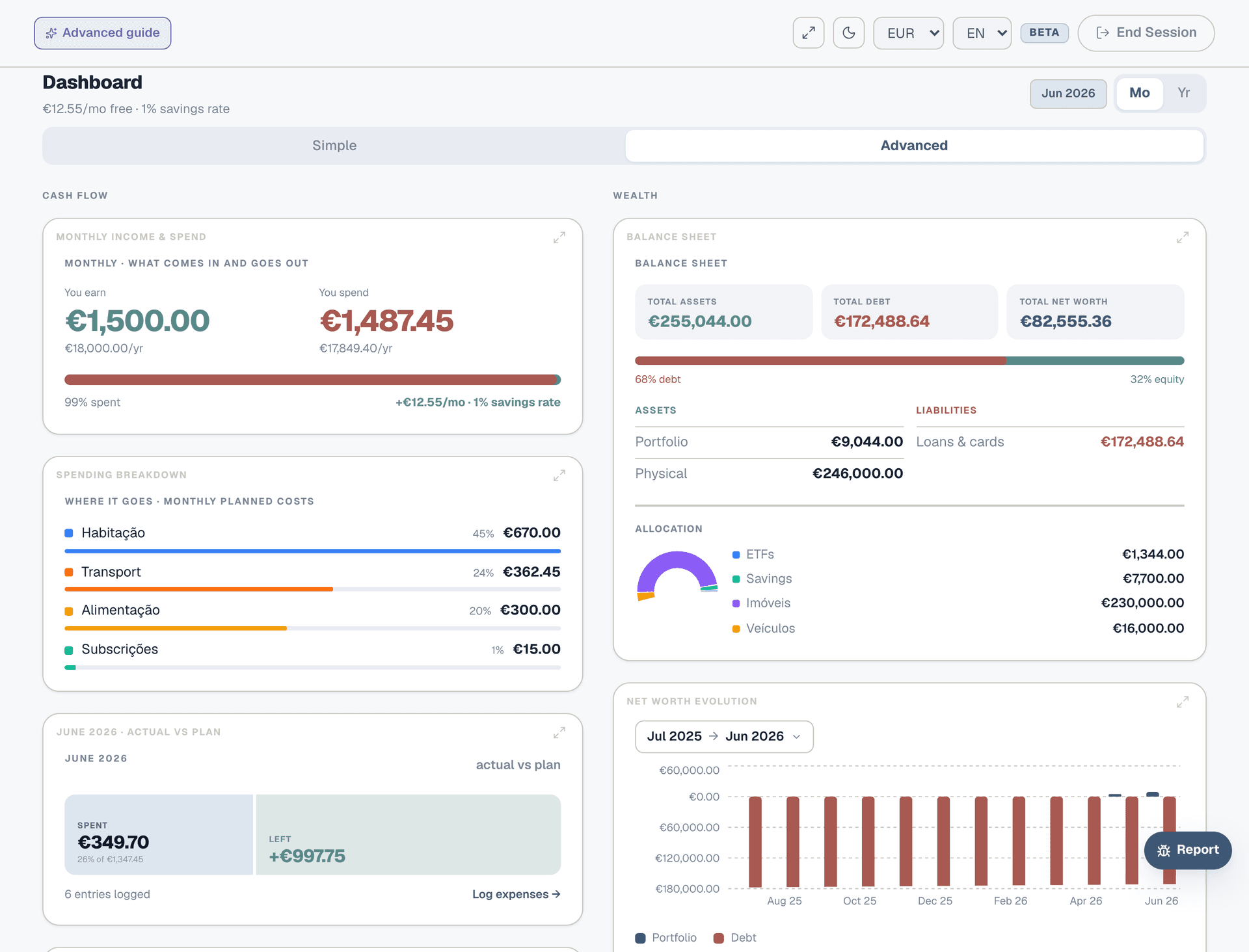
Everything in Collie is organised into two groups in the sidebar: Plan (for budgeting and tracking) and Wealth (for investments, goals, and assets). On mobile, these live in the bottom navigation bar — tap "More" to see the full list. You can switch between sections at any time without losing your work.
Step 2: Dashboard
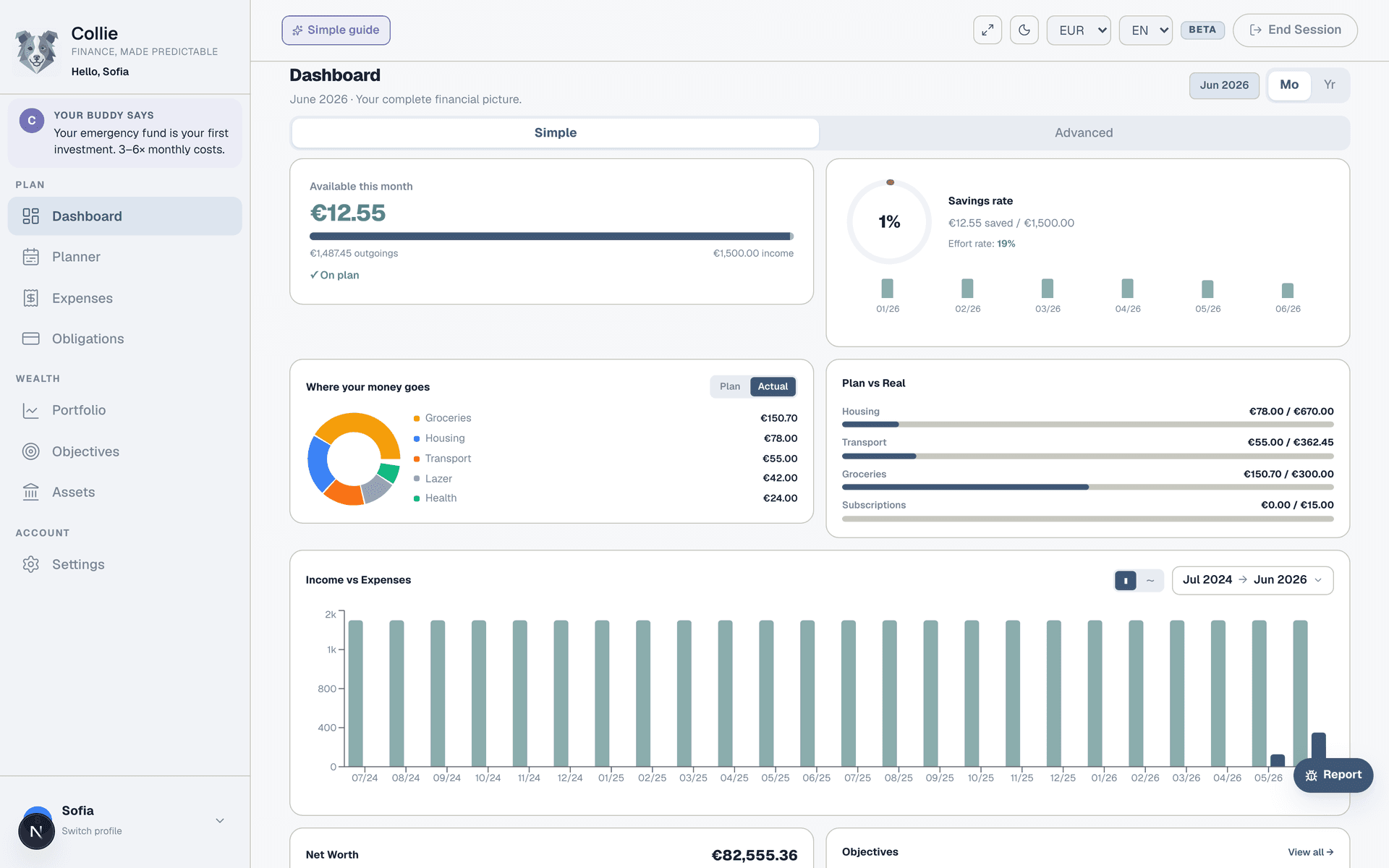
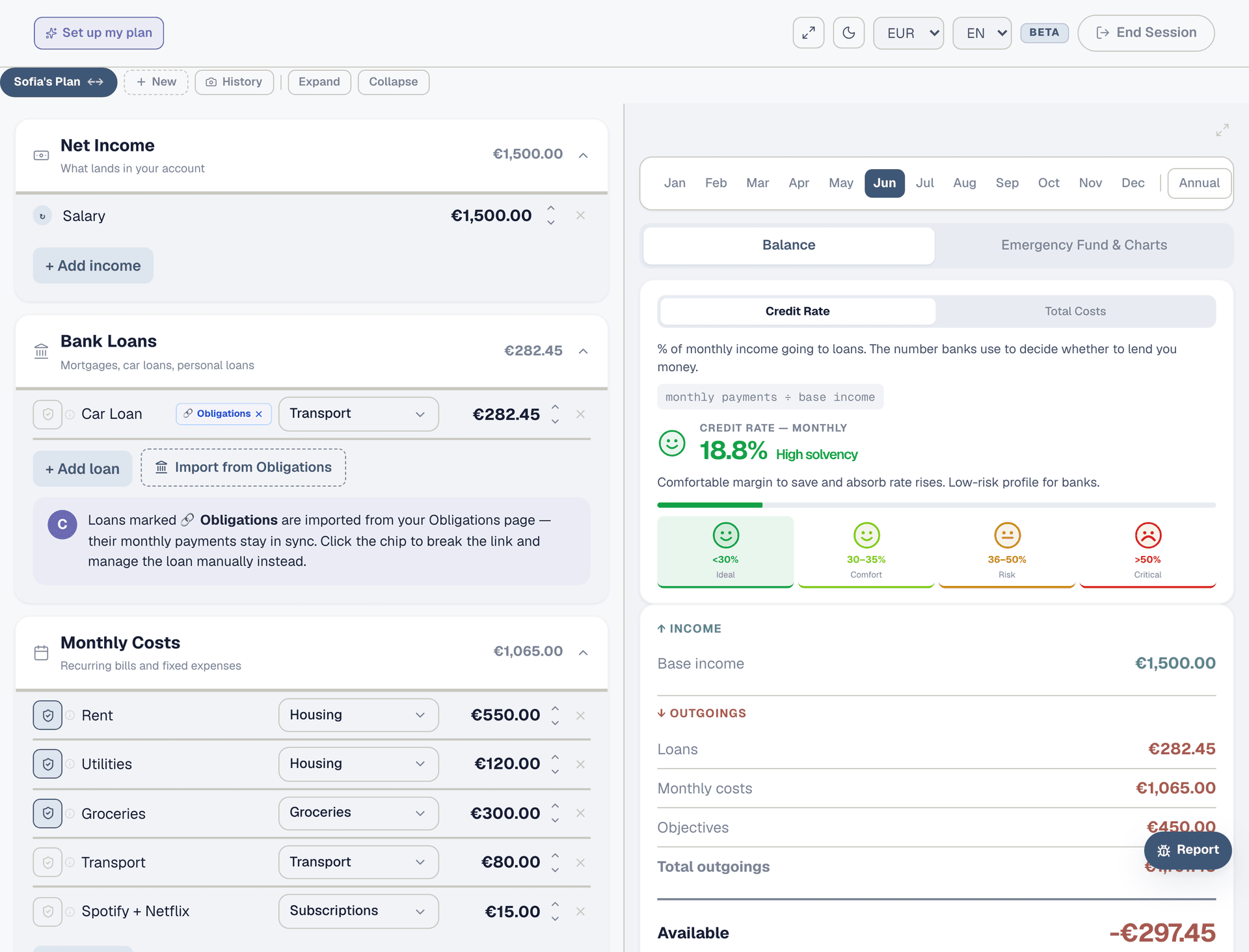
Your financial overview. It pulls data from every other section and shows you the big picture: how much you can spend this month, where your money goes, your savings rate, net worth, and emergency fund coverage. There are two modes — Simple (visual, chart-driven) and Advanced (collapsible sections with more detail). Start with Simple.
Step 3: Planner
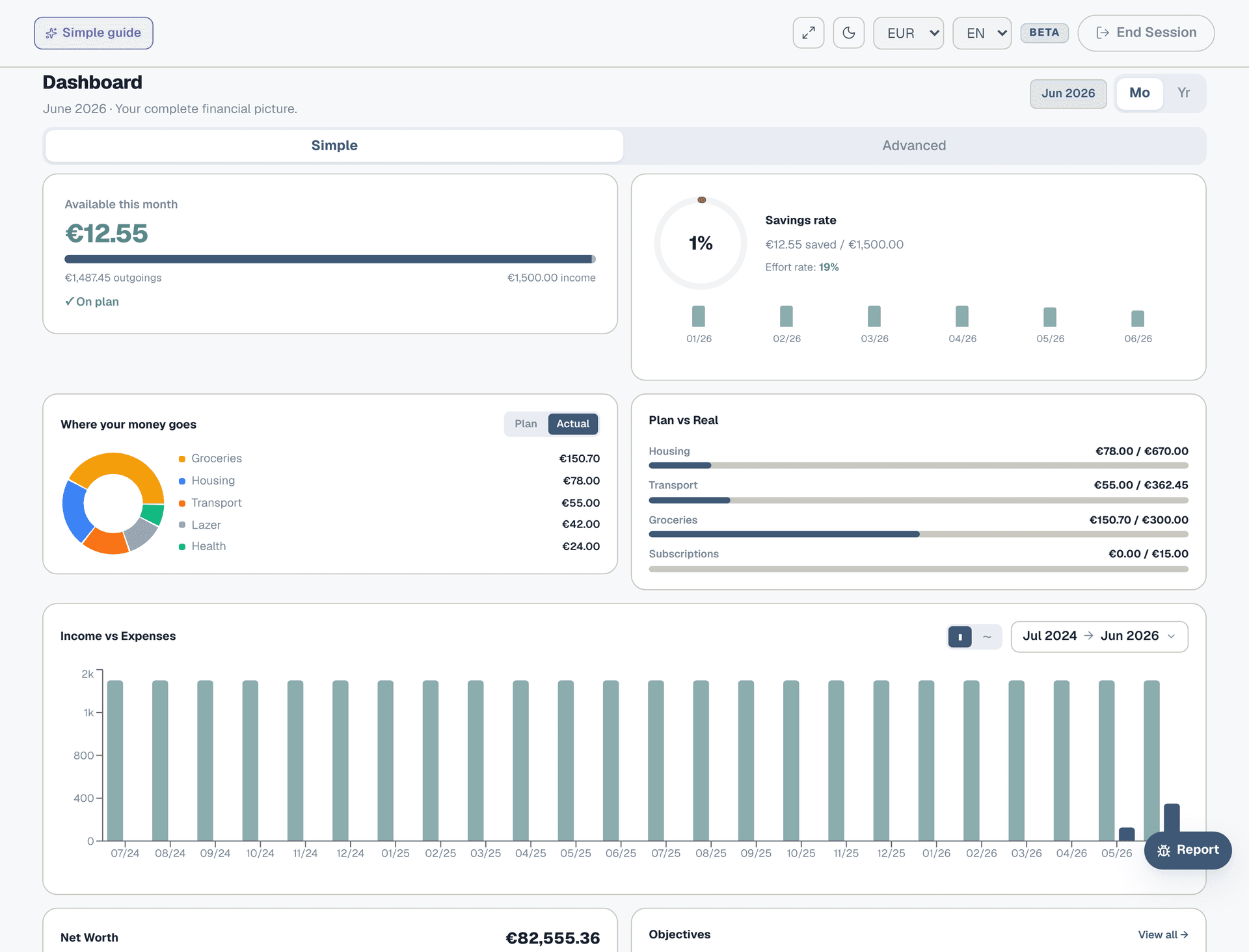
This is where you build your monthly budget. Add your income, fixed costs, loan repayments, and yearly expenses. The right panel updates in real time to show what's left after all commitments. Think of it as your financial blueprint — everything else in Collie compares against this plan.
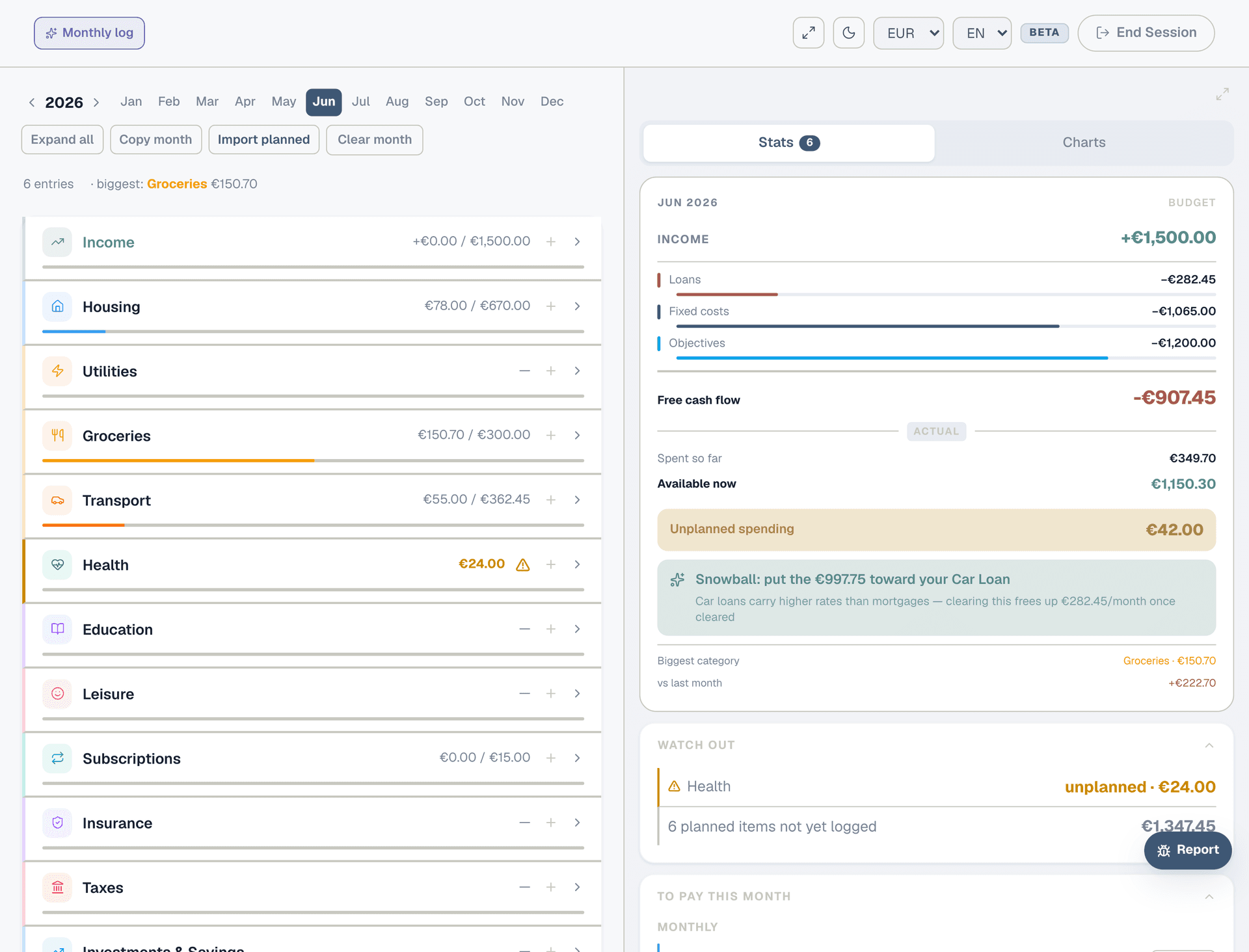
Step 4: Expenses
Your monthly spending log. Each month, log what you actually spent in each category. Collie compares this against your Planner to show where you're on track and where you're over budget. You can import your planned amounts in one click to set the baseline.
Step 5: Obligations
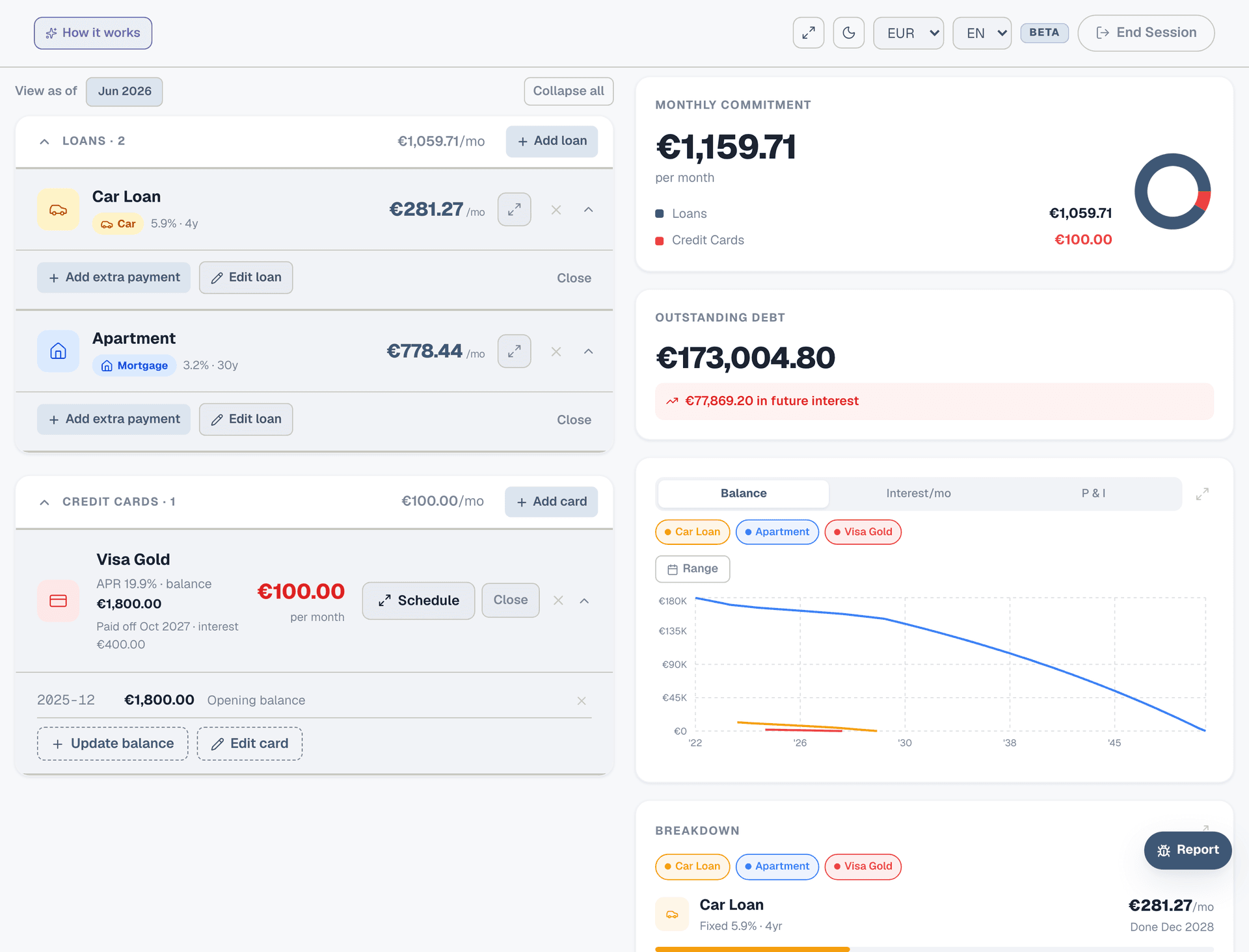
The detail page for your debts: mortgages, car loans, personal loans, credit cards. Add the full terms (principal, rate, duration) and Collie calculates the amortization schedule, remaining balance, and total interest. You can simulate extra payments to see how much time and money they save.
Step 6: Portfolio
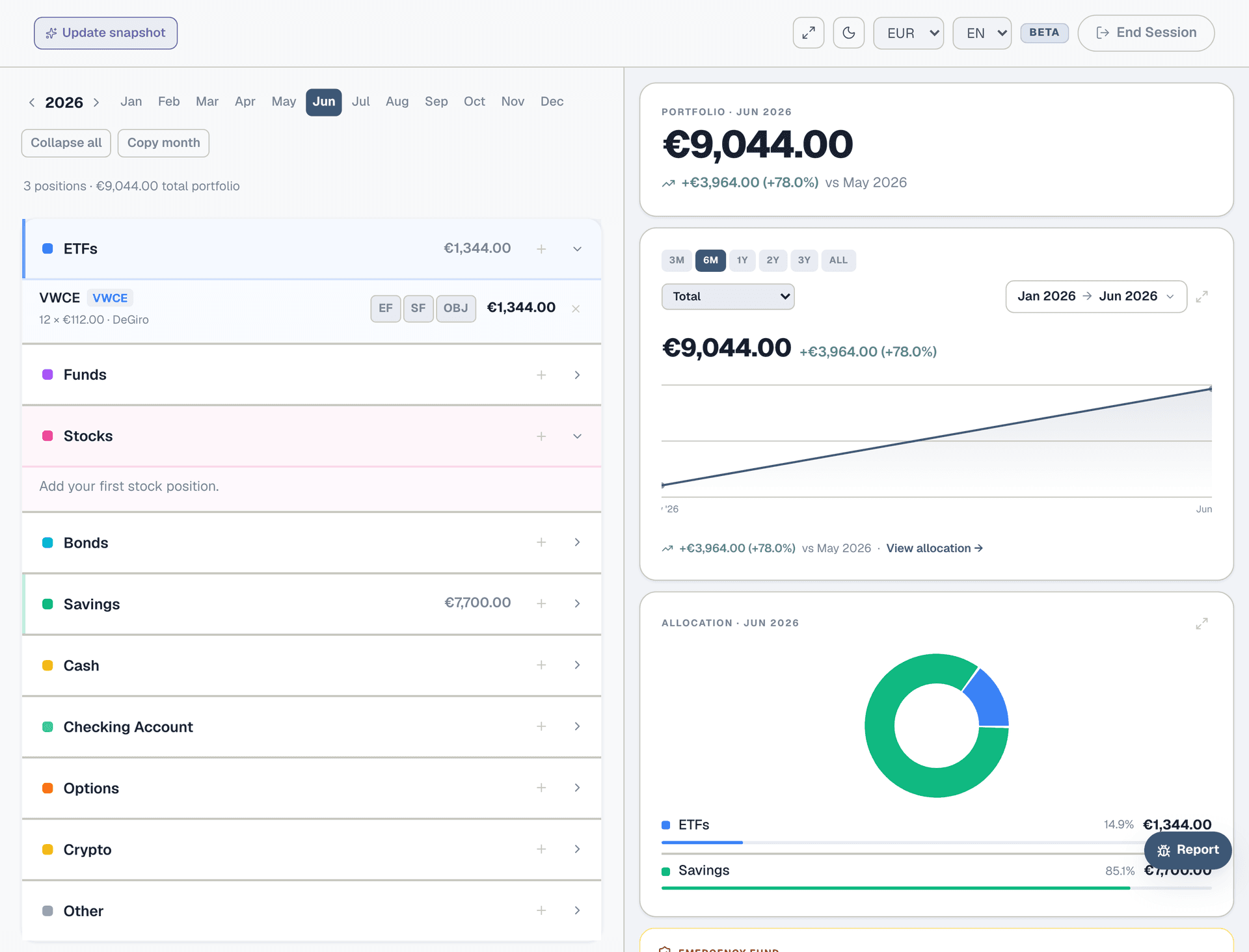
Track your investments and savings month by month. Add positions for ETFs, stocks, savings accounts, crypto — whatever you hold. Tag positions as Emergency Fund (EF), Sinking Fund reserve (SF), or link them to a specific Objective. The dashboard uses this data for your net worth and EF coverage.
Step 7: Objectives
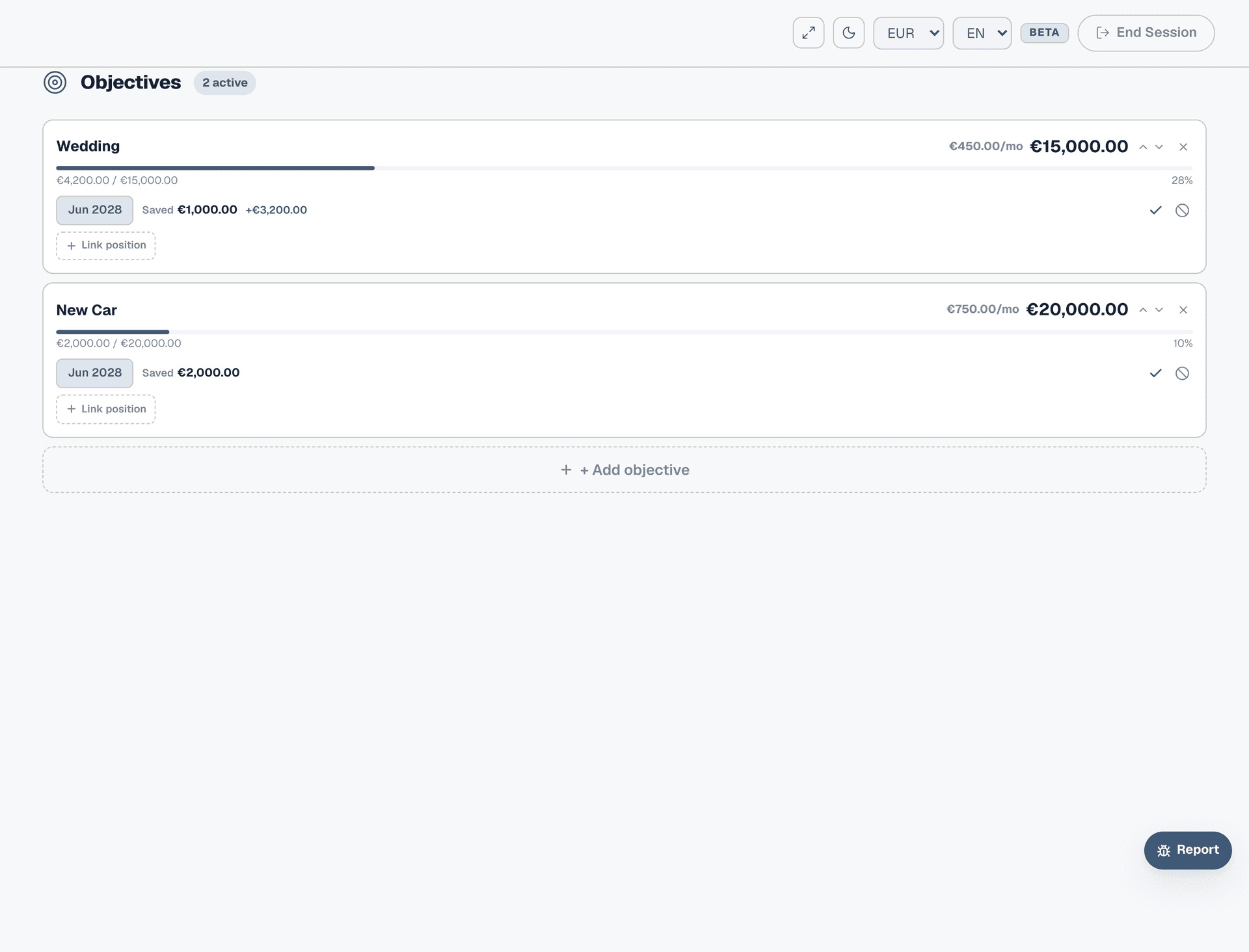
Savings goals with a target amount and date. "Wedding in 2 years — €15,000" or "New car by June 2028 — €20,000". Collie calculates how much you need to save each month. You can import objectives into your Planner so they deduct from your available cash, and link portfolio positions so progress tracks automatically.
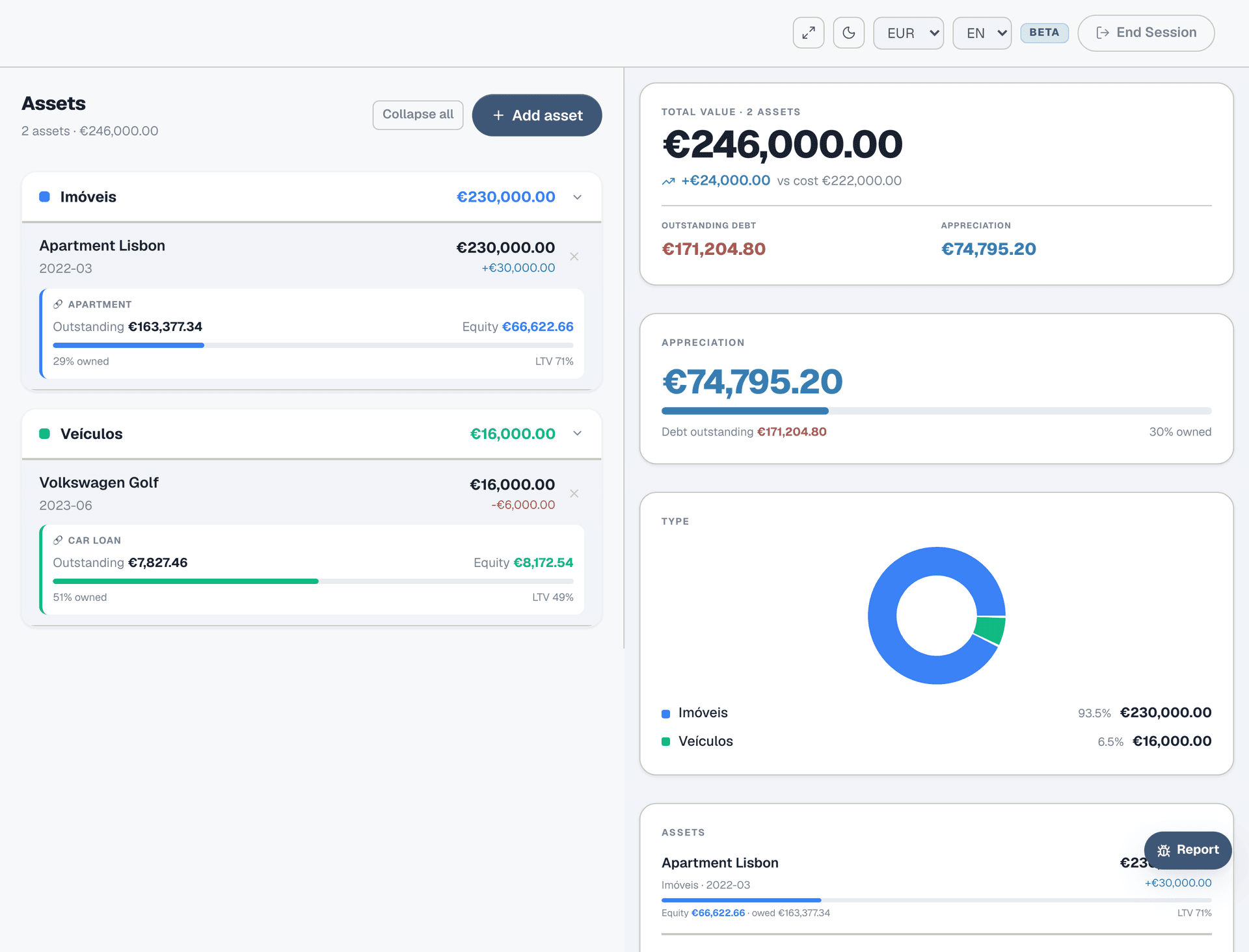
Step 8: Assets
Physical things you own: property, vehicles, valuables. Enter purchase and current value to track equity and depreciation. Link an asset to a loan (e.g. your apartment to your mortgage) and Collie shows loan-to-value ratio and equity buildup over time.
Step 9: How they connect
The sections aren't isolated — they feed into each other. Your Planner pulls loan payments from Obligations. Your Dashboard reads from Planner, Expenses, Portfolio, and Objectives. Portfolio positions link to Objectives for automatic progress tracking. Assets link to Obligations for equity calculations. The more you fill in, the more useful each section becomes.