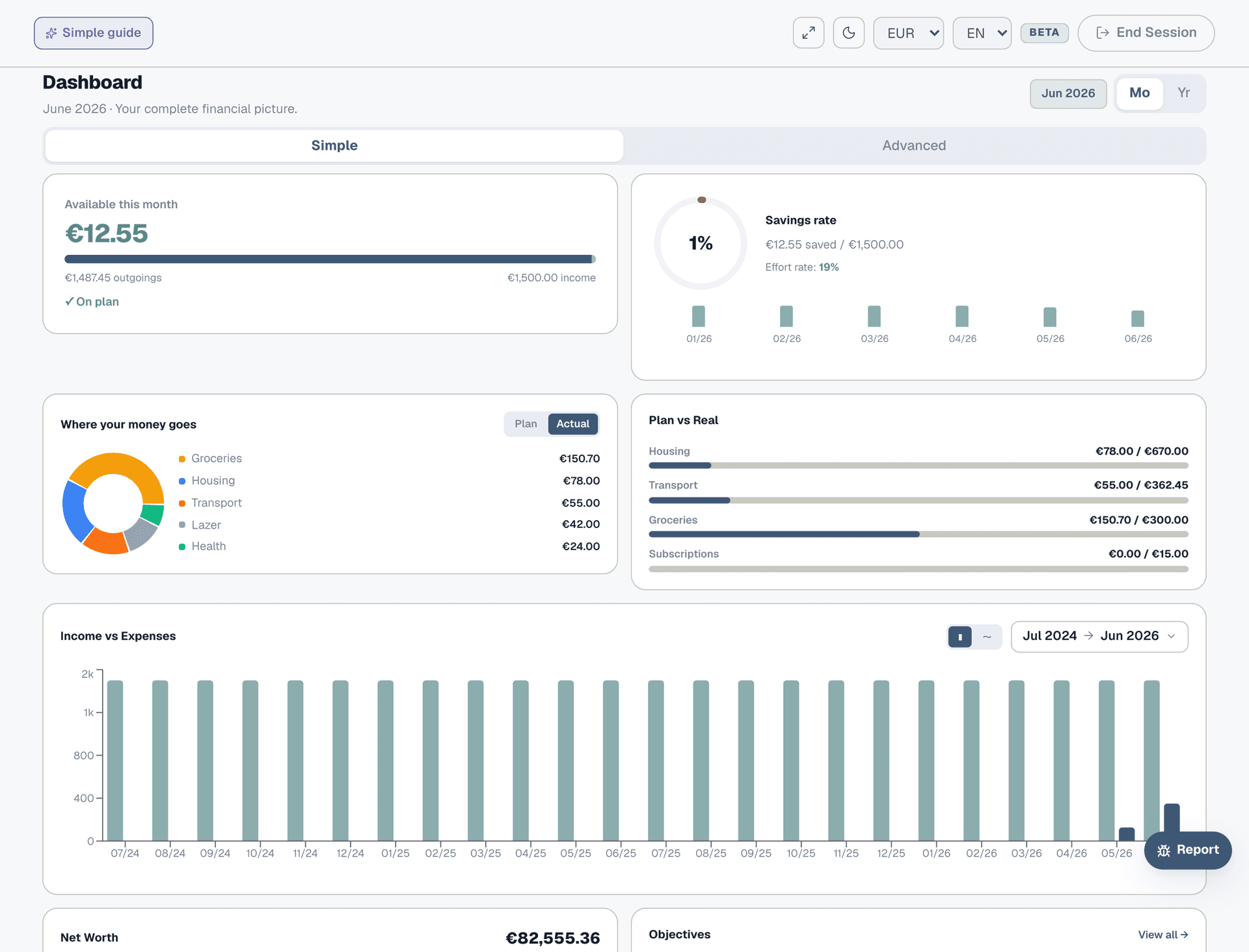
We're saving for a wedding
Set a savings target, link your accounts, and watch the progress bar fill up.
Step 1: Create your wedding objective
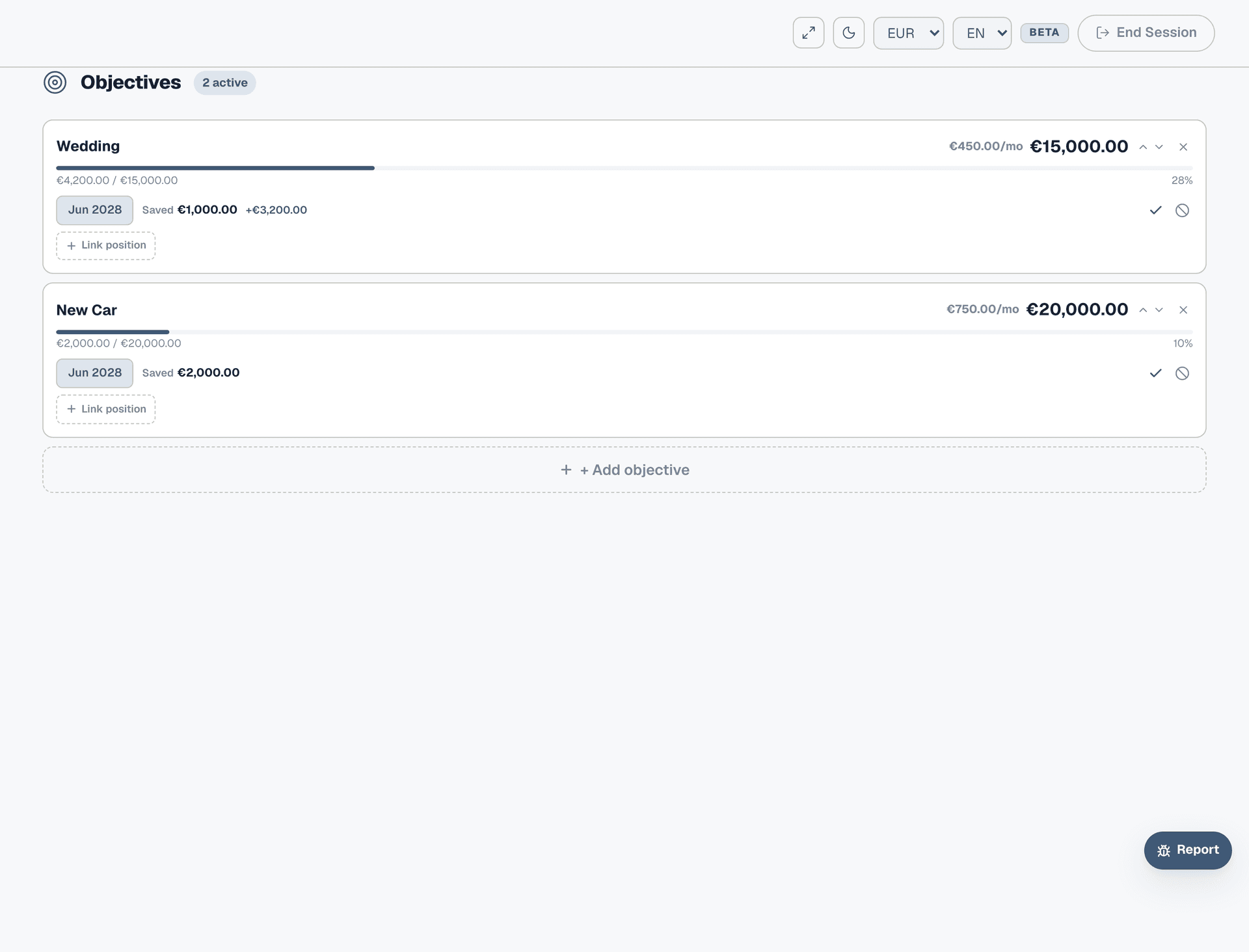
Go to Objectives from the sidebar and click "+ Add objective". Give it a name ("Wedding"), set the target amount you need (e.g. €15,000), and pick a target date (e.g. June 2028). Collie immediately calculates how much you need to save each month to hit that target — no spreadsheet needed.
Step 2: Enter what you've already saved
If you've been saving informally — cash in a savings account, a gift from family — enter the total in the "Already saved" field. This reduces the monthly amount Collie calculates. For example, €15,000 target with €1,000 already saved over 24 months means €583/month instead of €625.

Step 3: See your objective
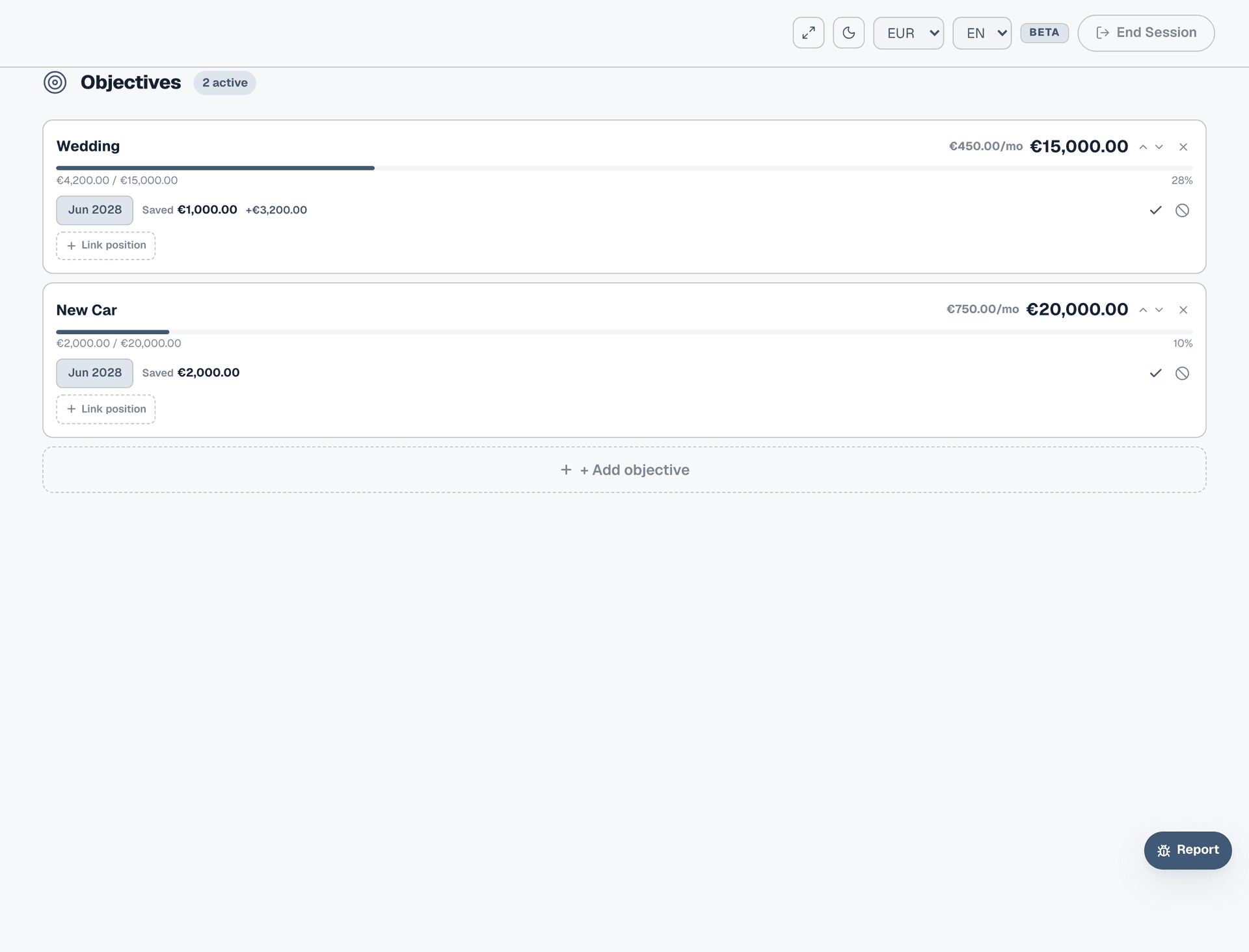
Your objective now shows on the Objectives page with a progress bar, the target date, monthly amount needed, and how far along you are. You can edit any field inline — click the name, amount, or date to change it. If your plans change (bigger venue, later date), the monthly calculation updates instantly.
Step 4: Link a savings account
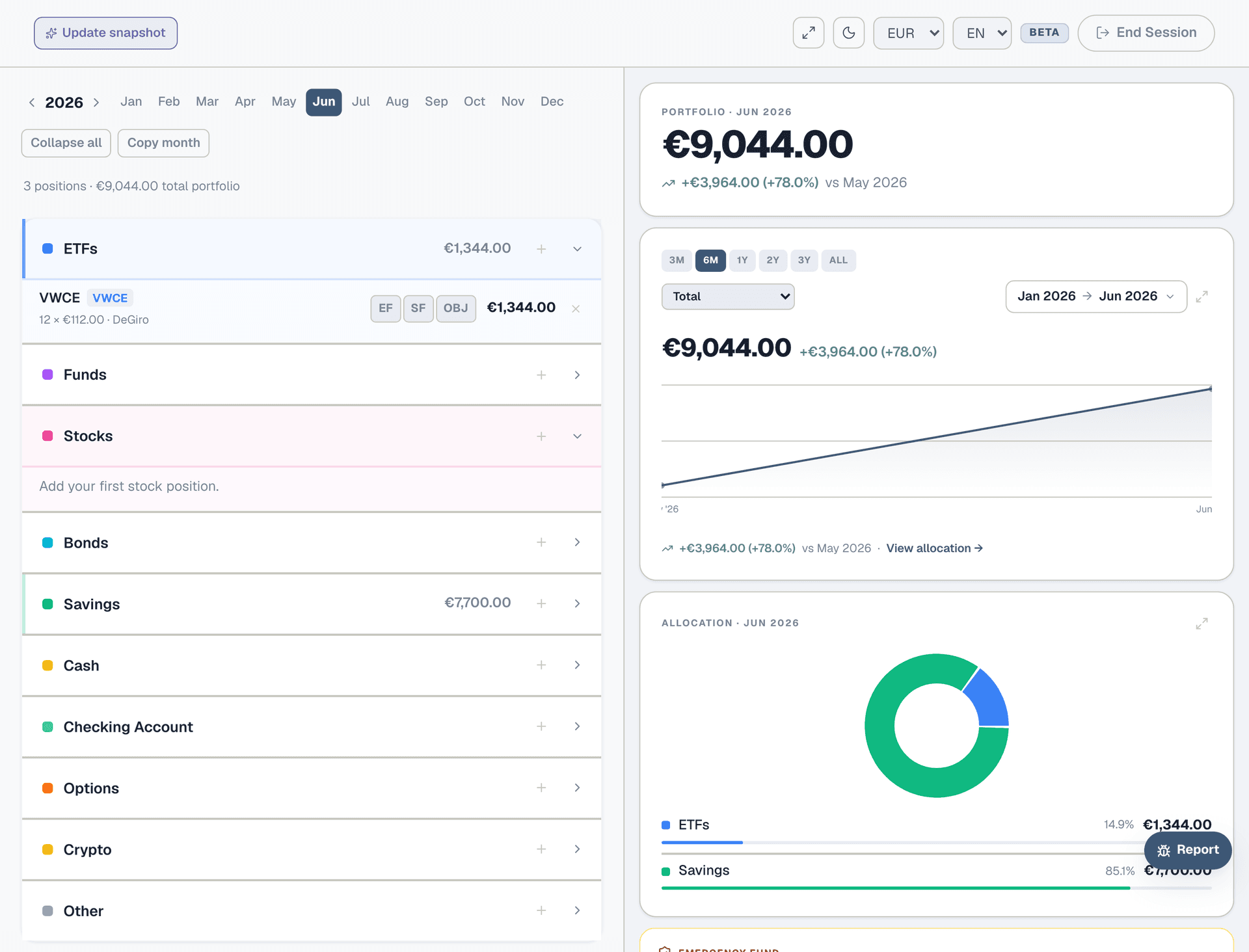
Go to Portfolio and find the savings account where you're actually putting the wedding money. On that position's row, tap the OBJ button (third in the tag strip) and select "Wedding" from the dropdown. Now the objective tracks this account's balance automatically — you don't need to update "Already saved" by hand each month.
Step 5: Check the linked positions
Go back to Objectives — your Wedding objective now shows the linked portfolio positions underneath: account name, asset class badge, and current value. The progress bar updates based on the portfolio balance plus any manual savings you entered.
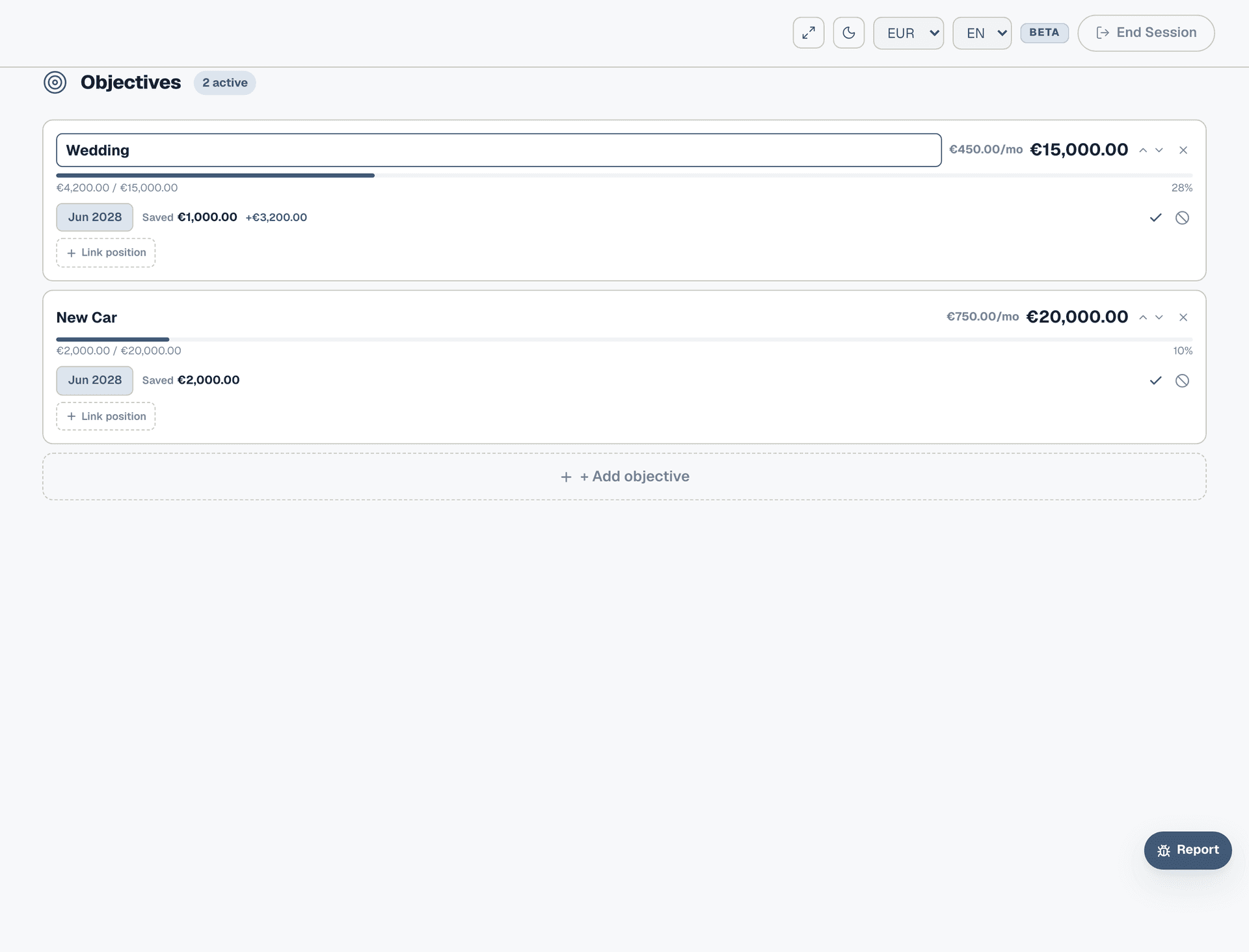
Step 6: Add it to your budget
Go to the Planner and scroll to the Objectives section. Click "Import objective" — a picker shows your available objectives. Select "Wedding", choose a start month, and hit Import. The monthly saving amount is now deducted from your available cash in the right panel. Your budget reflects the real commitment, not just the bills.
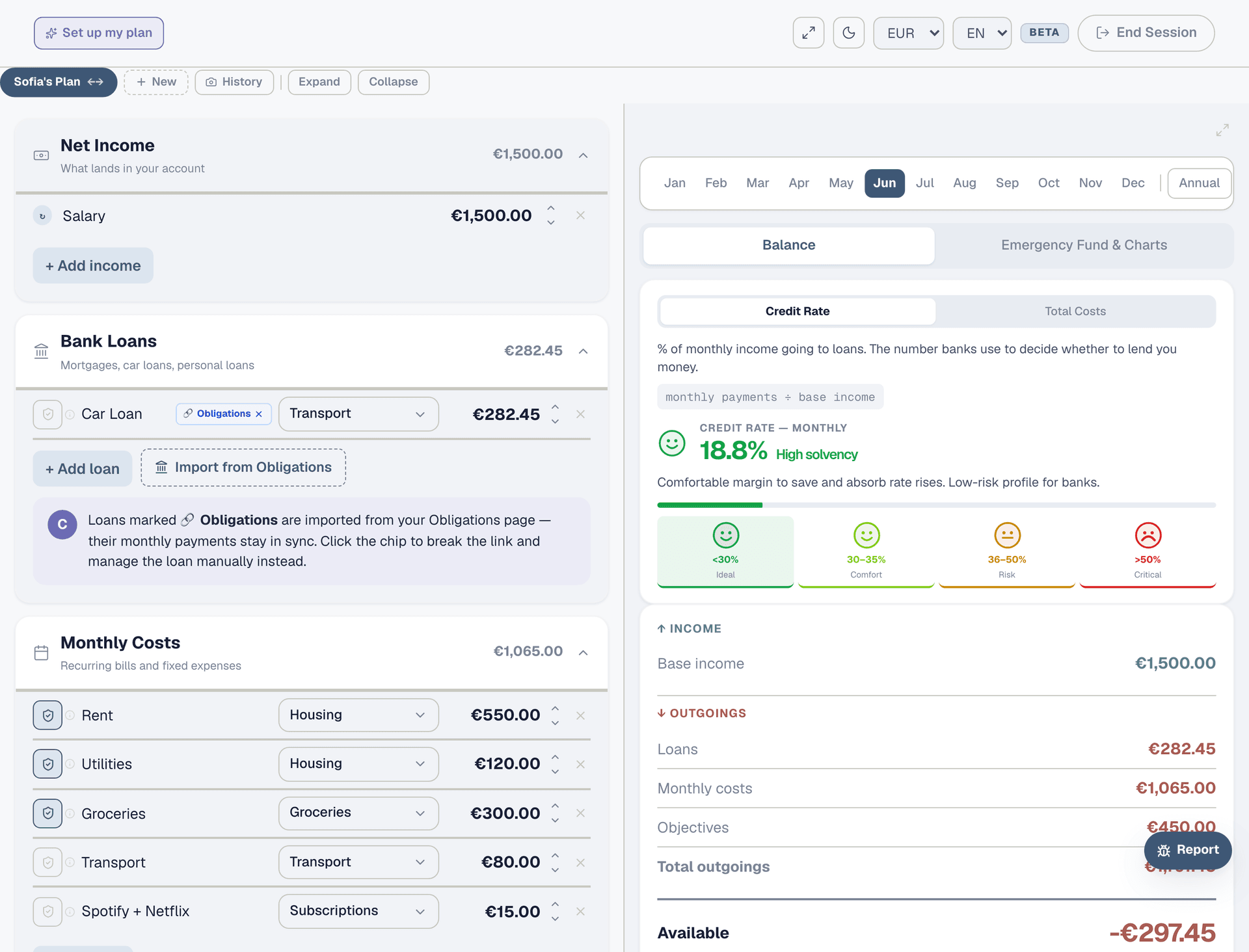
Step 7: Track it month by month
Each month, update your savings position in Portfolio with the new balance. The objective's progress bar advances automatically. On the Dashboard, your objectives show up in the bottom row with progress bars so you can see all your goals at a glance. When you hit the target, mark the objective as complete — it moves to the archive.